
Worth it?
High-Refresh Monitors: Who Actually Sees the Difference, and Who Is Paying for Nothing
Who sees it, who cannot, and what the machine has to manage first.
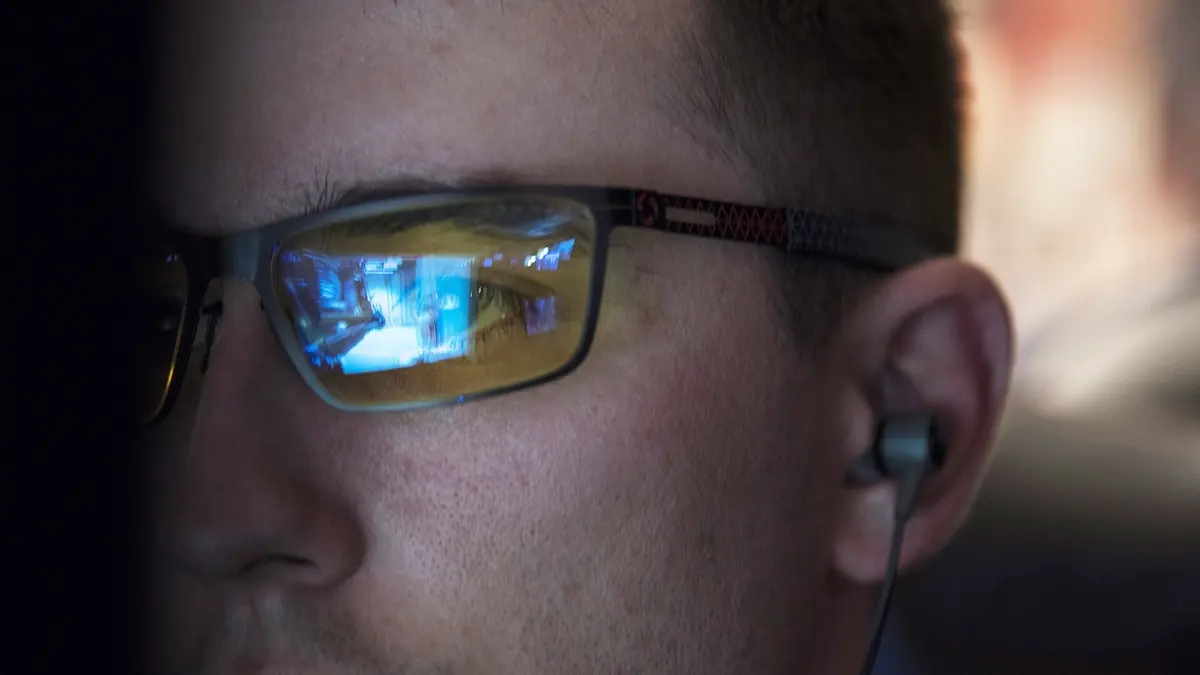
Photograph: U.S. Air Force photo by Airman William Tracy · Public domain pd · Wikimedia Commons
The takeawayYou know whether your own machine and genre can even cash the cheque before buying.
High refresh rates promise to revive twitch response. But the latest research shows the impact peaks under 250 Hz, and drops steeply for less demanding games.
A higher refresh rate means more frames are pushed out to the screen each second, reducing perceived lag and delivering smoother motion. It follows, then, that the higher the refresh rate, the better, right? The answer is: sometimes, but with diminishing returns.
Why refresh helps at all
Why does a higher refresh rate help in gaming at all? RTINGS found that input lag—that is, what comes of the delay between pressing a key and seeing an action register on-screen—isn't meaningfully affected by whether a monitor supports variable refresh rates (VRR) or high dynamic range (HDR).
But that delay does change when the monitor's refresh rate is different from the FPS (frames per second) the game or video content is rendering. With a high-refresh-rate monitor, the chances of the FPS matching the refresh rate are much greater. The more frames emitted per second, the lower the risk of the player seeing a jerk, a skip, or the screen lag behind their actions.
This matters most in games that ask for precise timing under fast movement. A 2019 study by NVIDIA found that, over a series of tests for competitive gameplay, performance improved monotonically as refresh rates rose from 60 to 120 to 240 Hz. The researchers concluded that 240 Hz gave a discernible competitive advantage, and that adding artificial latency on top of a 240 Hz monitor worsened performance more noticeably than not matching the game's FPS to the monitor's Hz elsewhere in the test.
Where the gains shrink
It may be a different story, though, in a less-competitive situation, or when the differences in refresh rates aren't as stark. NVIDIA's 2026 follow-up study on perceptual differences at higher refresh rates found that participants could readily spot differences between a 60 and 360 Hz refresh rate, but would much less reliably make a clear call on the spot between 144 and 360 Hz. The company concluded that while refresh-rate changes from 60 to 144 Hz improved perceived smoothness and gaming performance, the differences became harder to detect the higher the refresh rate already was.
It's not just that the perceptual differences shrink at higher refresh rates, either. It's that the practical effects of latency reductions depend on gameplay speed. The researchers reported that it was harder for testers to detect latency changes when game task speeds changed: latency was easier to spot when objects moved more slowly, and better reflected in improvement or degradation of player performance when the game speeds started to get lower.
LG Display, unsurprisingly, reported far more significant benefit from refresh-rate increases than the NVIDIA studies did. Reporting from a 2026 study into monitor refresh rates concluded that, compared to 60 Hz, 480 Hz reduced input lag by more than 10 milliseconds—though the underlying primary document is unavailable to verify that figure directly.
What must be true for the upgrade to matter
Making high refresh rates matter isn't about the hardware alone. Current DisplayPort specifications do support VRR through the Adaptive-Sync extension, but if your monitor isn't set to refresh at the game's native frame rate, you won't see that smoother response to begin with. The second factor is the graphics card itself. If the GPU can't deliver more than 60 or 120 frames per second, you're paying for frames you'll never get.
Crucially, RTINGS reports that, if both input signal formats achieve the same frame rates, then changes from HDMI to DisplayPort don't meaningfully change the monitor's input lag. A critical point here is that game hardware, connection hardware, and even software settings can still limit how high or responsive your frame rate can get, so looking at just the monitor's spec maximum won't be enough. In other words the frame rate has to reach the refresh rate before the refresh rate is worth anything.
Competitive use cases versus general play
Make no mistake, there's evidence showing measurably perceived, competitive benefits to running 144, 240, and 360 Hz reflex-demanding games. It is worth noting what those studies measure, though: their tasks are drawn from competitive shooters, which is exactly the case where refresh rate helps most. Findings from that setting do not transfer cleanly to slower genres.
A broader question, though, is what refresh rate delivers likely advantage, if any, for genres other than twitch-shooter games that test split-second, intuitive timing. It's less easy to draw a direct line there. While input lag is still a factor for those same reasons of mismatch between incoming and outgoing frames, the on-screen flicker that would lead a player to choose 360 Hz over 144 Hz isn't as noticeable in games that are crawling forward at a frame rate already well-supported by a 120, 144, or 240 Hz hardware.
How to test it without fooling yourself
PCMonitors.info proposes a checklist-style breakdown of all the criteria a monitor needs to meet to run VRR and smooth varying frame rates. RTINGS proposes a way of testing input delay in a home environment using a camera and stopwatch or webcam.
Taking one, or both, of these paths, with monitor refresh rates set as high as your hardware and game can reasonably deliver, would be a starting place for practical, if imperfect, drop-down tests of what a refresh-rate bump would do for, or to, your game. At that point, you'd be able to say you'd personally experienced the difference of, say, 144 versus 240 Hz at the same FPS, for the same game, and know how much of a difference it makes to you.
Buying decision for slower games
If you're playing older games, less demanding games, or "thinking/finger-pointing" strategy games where you don't need micro-second twitch response, you may be mostly paying for what comes by default with a decently modern but slower monitor. Those games won't incur the frame costs that would highlight the responsiveness of a higher-refresh monitor.
There's something to that, but just where the money is better spent will depend on what the latest available games will run on your hardware. The less likely you are to push game frame rates above the baseline beats of 120-144 Hz, the less likely 240, 360, or 480 Hz will come with their own perceptual and competitive payoff.


.jpg)