How to measure
How Much Video Memory You Actually Need, and How to Measure What Your Games Use
Allocated is not used, and the difference is why the usual advice misses.
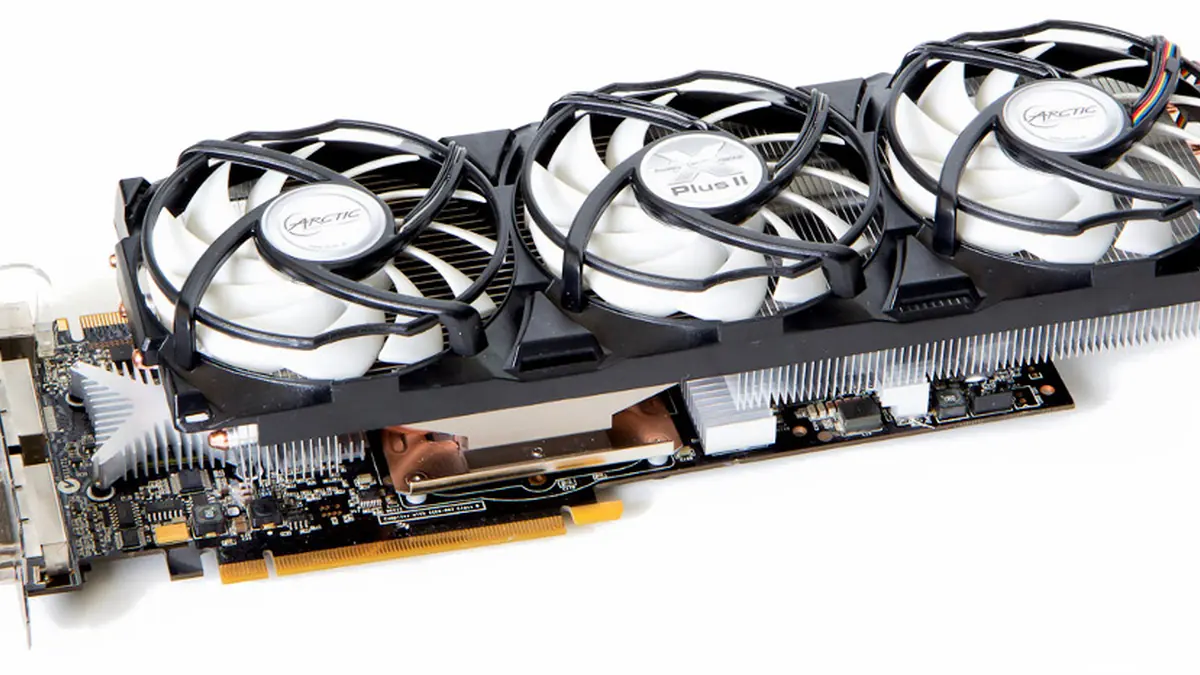
Photograph: Ballerinus · CC BY-SA 3.0 · Wikimedia Commons
The takeawayYou can measure your own usage correctly and size the next card from evidence.
Buying a new graphics card can be daunting, especially when so much advice focuses on raw VRAM specs rather than real-world usage. A larger number isn't always the right answer. The useful question is: how much VRAM do your favorite games actually use at your preferred settings?
To help you size the next GPU, this post walks you through what fills the frame buffer, how to measure demand, and how to estimate headroom.
What Actually Fills VRAM
Video memory is a fixed-size buffer that stores pixels and textures. Several factors combine to fill it:
- Resolution: The number and density of pixels determines the frame buffer size. At higher resolutions, each pixel must be counted in VRAM, greatly increasing demand.
- Texture Quality: Explicitly, higher quality means more detailed textures with more pixels. The GPU must store these large image files to draw them.
- Ray Tracing: Techniques like ray tracing and path tracing need extra data for lighting effects. The rendered scene must encode this information along with the standard pixels.
- Mods and Custom Content: Assets like high-res maps, complex models, and detailed textures loaded from mods will take up VRAM, just like the base game.
The AMD Radeon VRAM guidance page frames the issue as a chart of resolution targets and recommended VRAM per GPU class. At 4K, they advise 8 GB or more. At 1440p, the suggested minimum is 4 GB. And at 1080p, even entry level GPUs with 2-3 GB may suffice.
But beyond resolution, PC Game Check notes that textures scale directly with VRAM. High-quality textures require more image data storage.
Moreover, the variety of pixel counts between resolutions creates fluctuating frame buffer sizes. 1080p maps draw a 2 megapixel image, while each pixel must be processed and held in the frame buffer.
In short, VRAM demand balances resolution and image quality, with optical effects, mods, and more drawing above that budget.
What Happens When It Runs Out
While the VRAM dictates the peak data load, it is a ceiling, not a guarantee. When demand exceeds capacity, the GPU runs low. This is VRAM overflow: the point at which the game requests more video memory than is available on the GPU.
This can degrade performance in ways that show up as stutter, texture pop-in, and frame-time spikes.
Frame buffering, lighting effects, and texture loads may still strain under memory pressure.
AMD’s Radeon VRAM guidance broadly states that out-of-memory stalls appear as performance degradation (such as stutter and texture pop) rather than as a crash, while the VRAM Usage Estimator calculator at CalcBee specifies that signs are pop-in and hitching at high presets.
The practical takeaway is that VRAM exhaustion is a limit of smooth performance, not the data ceiling.
How to Measure Your Own Usage
So how do you test the actual VRAM usage for your own setup, before you invest?
According to CalcBee, you can pit an estimate against the total VRAM available:
- Initially, choose your resolution, choose your texture quality, optionally add mod overhead, and toggle ray tracing as needed. The calculator will then produce a VRAM estimate.
- Compare this to the total VRAM they measured for your GPU. The calculator builds the estimate as base texture VRAM (by resolution) plus mod overhead plus an RT buffer.
GPU monitoring tools and in-game overlays can show allocated VRAM, but attributions were not available to verify if this figure always represents true in-use memory.
However, the Bottleneck Lab guide suggests a practical method. "Before buying, the best way to experiment with target VRAM for a title is to monitor your in-game usage," the guide states, while the CalcBee VRAM Usage Estimator also gives a step-by-step estimate approach.
That approach is mirrored by AMD’s Radeon VRAM guidance page, which offers general VRAM prescriptions tied directly to output resolutions.
The first step is to note VRAM pressure at your desired resolution and fidelity. Then, verify whether the GPU can handle the load. This tells you the VRAM you can work with, based on your actual content.
How to Size Headroom by Resolution Class
Sizing VRAM headroom depends on your target resolutions and the kind of content you play. AMD’s Radeon VRAM guidance gives a general VRAM ceiling for each resolution:
- At 1080p, 2-3 GB should suffice for many games, but 4 GB is recommended
- At 1440p, 4-6 GB is recommended. 8 GB may be a safer target for modded games.
- At 4K, 8-12 GB will typically see you through, but modded games and ray tracing will need 12 GB or more.
The exact VRAM pressure also correlates to texture quality, as noted by PC Game Check. Higher-quality textures increase VRAM demand.
The upshot is that VRAM scales with resolution and fidelity, with ray tracing and in-game projects adding pressure. Specifics, however, are hard to pin down numerically without resorting to rule-of-thumb estimates.
The main driver of VRAM demand is image quality, including resolution, texture fidelity, and optical effects. In practice, however, these guidelines can leave you choosing between GPUs with different amounts of VRAM. Resolution is a key factor, but your content matters more.
If your games are finely tuned or you play at lower textures, a card with only 4GB of VRAM might suffice. But if you use high textures, ray tracing, or play modded games, 8GB is a safer bet.
When VRAM pressure couples with stutter and unexpected frame drops, the issue is usually running out of space. That spells the need for 4-6 GB, or 8-12 GB at 1440p.
As noted, VRAM overflow can cause textures to 'pop in', creating lag and hitches. Output resolution, not total FPS, drives that.
Recognizing this, you can apply the measurement workflow to choosing between two GPUs with different RAM. Measure your usage at your target settings, see how much headroom you're left with, then choose.
What Not to Overread in the Overlay
Tool overlays are a widely-used source of VRAM usage for GPUs. However, we could not find source documentation that clearly separated 'used' VRAM from 'allocated' memory.
Tool developers suggest that the VRAM monitoring number displayed by their overlays shows used capacity, not the total. To put it another way, it's a rolling peak, not an instantaneous workload.
Bottleneck Lab cautions: "The GPU’s dedicated memory allocation is dictated by the frame buffers, textures and other things stored on the GPU. Therefore, it should be noted that the GPU’s total VRAM is not heavily relied on (except for games with a very large Vram requirement)."
These tools are still useful for gauging safe VRAM capacity, but it's best to pay attention to the usage per-game at your target settings, for your own development. At the end of the day, the most relevant indicator of GPU VRAM usage is not the raw speculation on a vendor's datasheet, but the backed-up observation of real-world performance. The smart buyer will measure, not speculate, because VRAM is a limit, not a score.
By following the workflow, choosing your resolution and doing a safe peak gauge, you can select the right GPU for you. Do that, and the right amount of memory will follow.