How to
Getting a Twenty-Year-Old PC Game to Run Today: The Order to Try Things In
Copy protection, missing libraries, a loop tied to clock speed. In that order.
Photograph: ValorosoIT · CC BY-SA 4.0 · Wikimedia Commons
The takeawayYou read the failure symptom and jump to the right remedy instead of trying everything.
Getting an old PC game to run on a modern system can be a daunting task, but by following a systematic approach based on the failure symptom, you can quickly zero in on the right remedy. Let's start with a common failure: the game won't even launch, or it only shows a black screen. In most cases, the first step is to invoke Windows' built-in compatibility tools.
Start with Windows’ Built-in Compatibility Tools
Microsoft has included a Program Compatibility Troubleshooter for applications and games that were designed in an earlier era. You can find this in Start > Settings > System > Troubleshoot > Other troubleshooters. This tool will automatically simulate an older Windows environment, which can often resolve launch issues for games that were designed for Windows 98/2000/XP/Vista/7/8/8.1.
If the troubleshooter doesn't automatically resolve the issue, you can manually configure compatibility options:
- Right-click the game's executable file
- Select Properties > Compatibility
- Select the Windows version that the game was originally designed for, and tick "Run this program in compatibility mode for"
- You can also run the program with administrator rights: right-click the executable and choose Run as Administrator.
After making these changes, attempt to launch the game again. If it still fails to start, shows a black screen, or exhibits other display glitches, you'll need to escalate your troubleshooting.
If It Still Fails, Check the Runtime Layer
Some older games rely on specific runtime libraries and graphics interfaces that are no longer available on modern Windows systems. In particular, games from the late 1990s and early 2000s often require an earlier version of DirectX.
Most games will automatically prompt you to install any missing components, but if they don't, you'll need to do it manually. Be sure to get the version that matches the game's original requirements, not the latest one. You can often find runtime installers on the game's official website or by doing an online search for the specific runtime and installer version (usually something like "DirectX 9.0c End-User Redistributable").
With the correct runtime libraries in place, try launching the game again. If the screen is still black or the graphics are glitchy, the issue may be a rendering-interface mismatch.
When the Screen Is Black or the Graphics Are Broken
Older games often used software rendering techniques that are no longer supported on modern systems. This includes DirectDraw, Glide, and older versions of OpenGL. When these interfaces fail to initialize, you'll usually see a black screen, a garbled display, or an error message about the graphics device.
The solution in these cases is to use a compatibility layer or wrapper that translates the old rendering calls to something that modern systems can understand. Some popular options include:
- DOSBox for games that require a DOS-era environment
- ScummVM for games that use the SCUMM engine
- Wine for games that were originally designed for another operating system
These tools are often quite easy to use, but they can be tricky for more complex compatibility issues. You may need to experiment with different settings or consult the project's documentation for guidance.
Once you've got the rendering sorted out, you might find that the game actually runs, but the gameplay is broken.
When the Game Runs, but the Logic Is Wrong
Some older games tied their logic and timing to specific processor speeds or display frame rates. When you run these games on modern hardware, the increased performance can cause the logic to break, resulting in glitches, bugs, or even total gameplay failures.
The solution here is usually to use a compatibility mode that limits the maximum performance, or to use an emulator that can precisely control the game's timing and frame rate. You may need to experiment with different settings to find the right balance between performance and compatibility.
Additionally, older games may not be able to handle modern display resolutions or aspect ratios. This can result in games that are too zoomed out, or that have black bars at the top or bottom of the screen. In most cases, the game's settings menu will allow you to manually configure the resolution and aspect ratio.
If you've tried all of these solutions and the game is still unplayable, it may be time to escalate your troubleshooting to the next level.
Escalate to Emulation and Then a Virtual Machine
If the game is still not running properly, and you've exhausted all compatibility options, the next step is to run the game in an emulator. An emulator is a software program that simulates the hardware and software environment of an older system, allowing you to run games as intended.
One popular emulator for older PC games is DOSBox. DOSBox creates an environment that simulates a DOS machine, complete with a virtual hard drive, CD-ROM, and even a virtual cable TV channel.
To run a game in DOSBox, simply mount the game's CD-ROM or install folder, and then launch the game's executable file from within the emulator. DOSBox will automatically configure the necessary settings, and should allow you to experience the game as it was originally intended.
If emulation still doesn't work, or if the game relies on features that are difficult to emulate, you may need to use a virtual machine. A virtual machine is a software program that simulates an entire computer system, complete with its own operating system, memory, and storage. By running a virtual machine, you can create an environment that exactly matches the system requirements of the game you want to play.
The downside of using a virtual machine is that it can be resource-intensive, and may not be compatible with all modern gaming hardware. However, if you're having trouble running an old game on your current system, a virtual machine may be the best solution.
The Last Resort: Hardware from the Era
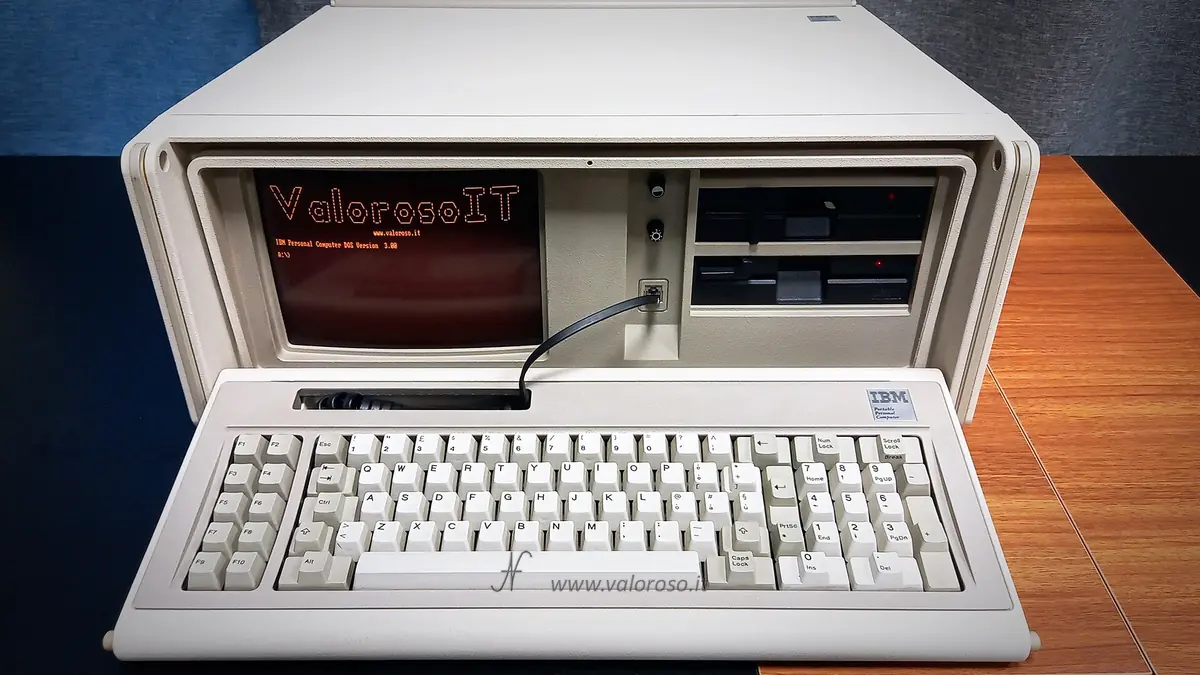
If all else fails, and you're unable to get the game running on a modern system, your final option is to use period-correct hardware. This means finding a computer that is from the same era as the game, and that has the exact same hardware specifications.
For most games, this means finding a computer with a compatible processor, graphics card, and operating system. You may also need to use original game discs, as many older games relied on physical copy protection that is no longer supported by modern systems.
While using period-correct hardware may seem like an extreme solution, it's often the only way to fully experience many older games as they were originally intended. Just be aware that restoring older hardware and hunting down original floppies can be a time-consuming and expensive process.
Conclusion
When it comes to getting an old PC game to run on a modern system, the key is to work your way through the troubleshooting ladder. Start with Windows' built-in compatibility tools, then escalate to runtime components, rendering wrappers, and even emulation if necessary. Only if all else fails should you resort to using period-correct hardware. By following this systematic approach, you can quickly identify the most likely cause of the problem and find a solution that gets you back in the game.